ticker
Ticker User Guide
Ticker is a plugin for Dispatcharr that adds live text overlays to IPTV channels via FFmpeg. It clones the channel’s existing stream profile, injects overlay parameters into the clone, and restores the original when disabled. Your source profiles are never modified.
Table of Contents
- Installation
- Before You Start — Universal Requirements
- Satellite Radio Now Playing
- EAS/JAS Weather Alerts — USA
- Weather Canada Alerts
- Custom Text
- Sports Ticker
- Settings Reference
- Actions Reference
- Troubleshooting
Installation
- In Dispatcharr, go to Plugins → Find Plugins.
- Search for Ticker and click Install.
-
When installation completes, go to Ticker → Actions and run Restart Dispatcharr.
This step is required every time you install or update Ticker. Dispatcharr loads plugin code once at startup — without a restart, none of the new code is active.
- After the page reloads, navigate back to the Ticker plugin page and continue with the setup section below for the overlay type you want.
Before You Start — Universal Requirements
Before enabling any Ticker overlay on a channel, that channel must have a stream profile assigned to it in Dispatcharr. Ticker clones that profile to inject the overlay — if the channel has no profile, there is nothing to clone and the enable action will skip the channel.
How to assign a stream profile:
- In Dispatcharr, go to Channels.
- Open the channel you want to enable a Ticker overlay on.
- Under Stream Profile, choose any active profile.
- Save.
Repeat for every channel (or use a Channel Group default profile) before running any Ticker enable action.
Proxy and Redirect profiles are not compatible
Ticker injects overlays by adding FFmpeg filters to the channel’s stream profile. Channels using a Proxy or Redirect stream profile cannot use any ticker — these profiles pass the stream through Dispatcharr’s internal proxy or redirect the client directly to the source URL, bypassing FFmpeg entirely. There is no FFmpeg process to inject into.
If a channel is skipped with the message “stream profile is Proxy or Redirect — assign an FFmpeg profile to enable this ticker”, do the following:
- In Dispatcharr, go to Channels and open the affected channel.
- Under Stream Profile, select any FFmpeg-based profile. Any profile that is not named Proxy or Redirect is FFmpeg-based. If you’re unsure which to choose, the default FFmpeg profile works for most channels.
- Click Save.
- Go back to Ticker and re-run the enable action you were trying to use.
If many channels are affected: The most likely cause is that Dispatcharr’s system-wide default stream profile is set to Proxy or Redirect, and those channels have no explicit profile assigned. To fix all of them at once, go to Dispatcharr Settings → Streams and change the default stream profile to an FFmpeg-based one. After saving, re-run the Ticker enable action.
Auto-synced channels can silently revert Ticker’s overlay profile
If your channels come from an M3U playlist and that M3U account’s channel group has a default Stream Profile configured (a Dispatcharr auto-sync setting), Dispatcharr resets the channel’s stream profile back to that default every time the M3U refreshes — undoing whatever profile Ticker cloned and assigned, with no error shown to you. The overlay will work right after you enable it, then silently stop appearing after the next scheduled M3U sync, even though Ticker’s settings still show the channel as enabled.
How to tell if this affects you: In Dispatcharr, open the M3U account that owns your channels, find the group your Ticker-enabled channels belong to, and check whether a Stream Profile is set for that group.
Fix: Clear the Stream Profile override for that group (leave it unset) so auto-sync stops reasserting a profile over Ticker’s clone. Assign stream profiles per-channel instead, the normal way (see above) — Ticker will keep managing them correctly from there. This applies to every Ticker overlay type (Now Playing, EAS, Sports Ticker, Custom Text), not just one feature, since they all clone and assign a stream profile the same way.
Satellite Radio Now Playing
What it does
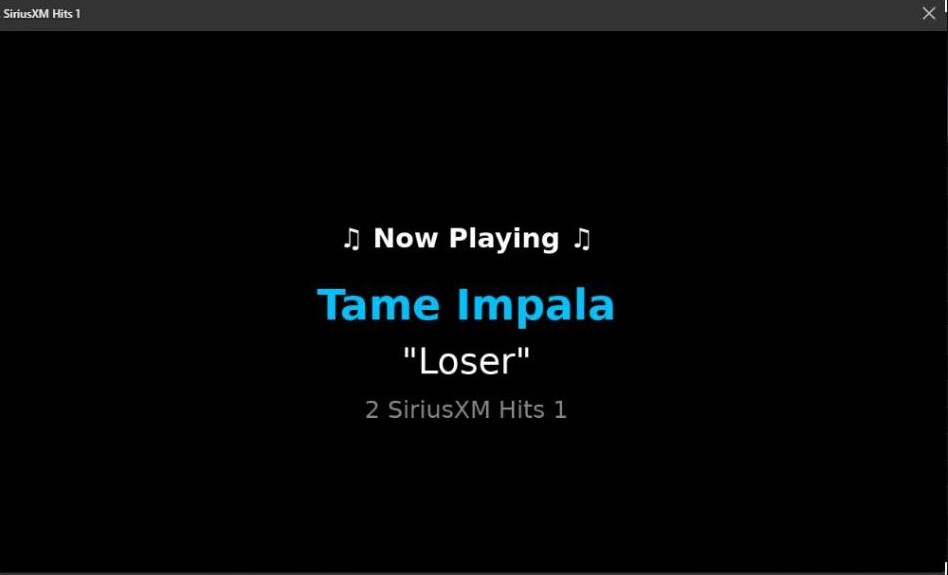
Ticker fetches the currently playing track for each satellite radio station from stellartunerlog.com and displays the artist name, song title, and channel name in a centered overlay on the stream. For audio-only channels (no video signal), Ticker also injects a 1280×720 black video frame so the overlay has something to render on.
The overlay updates automatically as tracks change — no interaction needed after setup.
Your base profile must be genuinely audio-only
Satellite radio channels have no video signal at all. To show the Now Playing overlay, Ticker has to generate video from nothing — it draws a black canvas and writes the artist/song text onto it, then encodes that as a new video stream alongside your existing audio. This only works if Ticker can tell your channel truly has no video to begin with.
Ticker decides this by checking whether the stream profile’s FFmpeg parameters contain a video codec flag (-c:v or -vcodec) at all. If your profile includes -c:v copy — even as unused boilerplate copied from a video profile template — Ticker will assume the channel has real video and try to draw the overlay onto it instead of generating its own canvas. Since there’s no actual video track for -c:v copy to pass through, the overlay will never appear, and FFmpeg does unnecessary extra work trying to encode video that doesn’t exist.
If you don’t already have a dedicated audio-only profile, create one:
- In Dispatcharr, go to Settings → Stream Profiles → Add.
- Use parameters like the following — no
-c:vor-vcodecflag anywhere:-fflags +genpts -i {streamUrl} -vn -c:a libfdk_aac -b:a 256k -ac 2 -f mpegts -avoid_negative_ts make_zero pipe:1 - Save, then assign this profile to your satellite radio channel group before enabling Now Playing (see Before You Start).
The -vn flag (discard video) makes the intent explicit and guarantees Ticker detects the channel correctly, even though there’s no video track to discard in the first place.
Step 1 — Set up your satellite radio channels in Dispatcharr
If you have not yet set up channel names, EPG data, sort order, or logos for your satellite radio channels, Ticker can do all of it. These steps are optional but strongly recommended before enabling Now Playing so that channel matching works correctly.
Where to find this in the app: In Ticker Settings, the Now Playing fields appear first. Scroll down past the Now Playing section to reach the Satellite Radio Channel Setup section. Configure the Apply To target there, then come back here to run the actions below.
All four actions below use the same Apply To target you configure in the Satellite Radio Channel Setup section of Ticker settings. Select your channel group there before running any of these.
| Action | What it does | When to run it |
|---|---|---|
| Fill EPG — Full Satellite Radio Guide | Downloads Ticker’s satellite radio EPG and assigns it to the selected channels. Sets tvg-id, channel name, and guide data. | Run this first if your SiriusXM channels have no EPG. |
| Fill EPG — TVG ID Only | Sets only the tvg-id on selected channels so they match an EPG source you already have loaded. Does not download guide data. | Use instead of Full EPG if you have an existing EPG source. |
| Sort Channels | Renumbers the selected channels by satellite radio lineup order. Fills in the Sort Start Number automatically if left blank. Sequential mode (default) packs channels with no gaps; Absolute mode sets each channel’s trailing digits to its real SXM station number — see Numbering Mode below. | Run after Fill EPG to put channels in the right order. |
| Assign Logos | Sets channel logos from Ticker’s built-in satellite radio library. Channels with no match are skipped. | Run after sorting. |
| Fill EPG + Sort | Runs Full EPG fill and Sort together. | Shortcut for the two most common steps. |
| Fill EPG + Sort + Logos | Runs all three together. | Recommended for a full first-time setup. |
What’s in the guide: Sports channels get real game-by-game listings (team matchups, race/event schedules) refreshed every 4 hours. Most other named channels (music, talk, news, comedy) now get their actual show lineup too — real program names and air times pulled from SiriusXM’s own published schedules, refreshed daily — instead of one generic all-day block. Channels with no published schedule (app-exclusive Xtra channels, on-demand-only channels) still get a single all-day block with the channel name, same as before.
Step 2 — Configure Now Playing settings
In Ticker settings, scroll to the Now Playing section (it is the first section at the top of the settings panel) and fill in the following fields in order:
- Apply To — Choose the scope:
- All Channels — Enables Now Playing on every channel Ticker can see. Use this only if your entire channel library is satellite radio.
- Channel Group — Enables Now Playing on every channel in a specific group. This is the recommended option for most installs where satellite radio channels are in their own group.
- Multiple Groups (CSV) — Enter a comma-separated list of group names to enable across several groups at once.
- Single Channel — Enables Now Playing on one specific channel.
- Fill in the field that matches your Apply To selection:
- If Channel Group: select the group from the Channel Group dropdown.
- If Multiple Groups: type the group names in Group Names (e.g.
SiriusXM, Satellite Radio). - If Single Channel: select the channel from the Channel dropdown.
- Leave all other target fields blank.
-
Exclude Groups (optional) — If you chose All Channels or Channel Group, enter any group names you want skipped (e.g.
News, Sports) as a comma-separated list. - Trigger Mode — Controls when the overlay profile is active:
- On-Demand (default, recommended) — No profile is cloned until a viewer tunes in. The overlay activates on connect and restores to passthrough after about 30 seconds with no viewers. Saves a permanent profile per channel, but every connect requires Ticker to swap profiles and restart the stream — most players handle this fine, but some (Plex is a known example) can be sensitive to a mid-connect restart.
- Always On — The overlay profile is cloned and assigned permanently the moment you enable Now Playing, before anyone connects. There is no restart on connect — whoever tunes in gets the overlay from the very first frame. Recommended if you’re seeing playback issues on a particular player when a channel is first opened. This creates one permanent cloned stream profile per enabled channel; unwatched channels still cost nothing (FFmpeg only runs while something is actually connected, regardless of trigger mode).
Shared vs. per-channel stream profiles
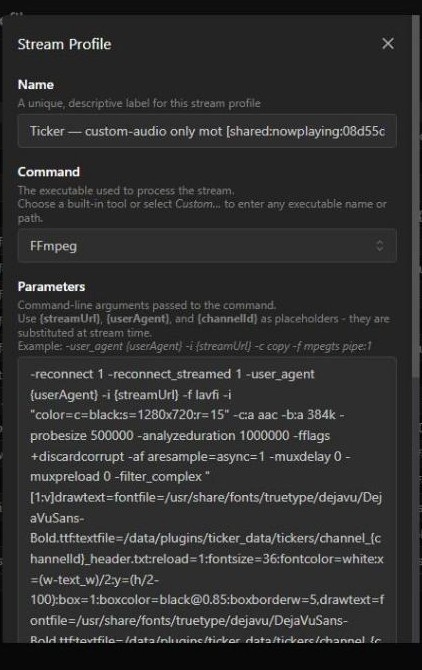
On Dispatcharr v0.29.0 and later, Ticker uses the {channelId} stream profile substitution token (shipped in v0.29.0, closing the feature request Ticker had been waiting on) to point every channel at one shared stream profile per overlay type instead of cloning a separate profile per channel. Enable Always On across a full 400+ channel satellite radio lineup and you’ll see exactly one new profile appear in Dispatcharr’s Stream Profiles list — named something like Ticker — <base profile> [shared:nowplaying:<hash>] — shared by every channel using that same base profile. If some channels in your lineup use a different base stream profile than others, you’ll see one shared profile per distinct base profile in use, not one per channel.
On Dispatcharr versions before v0.29.0, Ticker automatically falls back to the previous behavior: one cloned stream profile per enabled channel — for example, 424 channels means 424 cloned profiles. This has no performance impact either way. FFmpeg only runs while a channel is actively connected regardless of how many profiles exist; unwatched channels cost nothing whether they have a cloned profile sitting in the database or not. This was directly verified on both paths: bulk-enabling Always On across 424 channels completed in under 2 seconds with zero errors, and server load/CPU/memory were unaffected both during the operation and afterward.
Ticker detects which mode to use automatically — there is nothing to configure. Run Actions → Check Stream Profile Capabilities at any time to see which mode your Dispatcharr install is currently using and why.
Upgrading an existing install to shared profiles
If you enabled Ticker on a Dispatcharr version older than v0.29.0 and later upgrade Dispatcharr to v0.29.0+, your already-enabled channels keep using their existing per-channel clones until something naturally re-clones them (a disable/re-enable cycle, or — for On-Demand mode — the next time a channel goes idle and a viewer reconnects). To move already-enabled channels onto shared profiles immediately instead of waiting, run Actions → Migrate to Shared Profiles. It’s safe to run more than once — channels already on a shared profile are skipped — and it reassigns each channel to the correct shared profile (creating one if needed) before deleting the old per-channel clone, so no channel is ever left without a working profile mid-migration. EAS and Weather Canada channels aren’t touched by this action: their overlay profiles only exist while an alert is actively firing and are already rebuilt from scratch on every new alert, so they migrate to shared profiles automatically the next time an alert fires — nothing to run manually there.
Upgrading from the old Tickarr plugin
Ticker was renamed from Tickarr in v0.5.00. It’s the same plugin — a full rebrand, not a fork — but Dispatcharr sees it as a brand-new plugin: different plugin key, different data directory. Updating an existing Tickarr install in place to a Ticker release does not carry your channel configuration forward automatically.
If you’re upgrading from Tickarr:
- Install Ticker alongside your existing Tickarr install — do not uninstall Tickarr yet.
- Enable Ticker, then run Actions → Migrate from Tickarr.
- Ticker reads Tickarr’s own configuration directly, and for every channel with an active overlay, clones a fresh Ticker-managed stream profile (so playback keeps working once Tickarr’s own files are gone) and reassigns the channel to it. Channels with no overlay currently active (e.g. idle On-Demand channels) are imported as-is — Ticker will clone their profile the normal way the next time they’re needed.
- If every channel migrates without error, the action also removes Tickarr’s leftover data directory and any of its stream profiles that are no longer in use — so uninstalling the Tickarr plugin is the only manual step left.
- If anything fails partway through (e.g. a channel’s original stream profile was deleted), nothing is torn down — already-migrated channels are safe and won’t be touched again, and the action can be re-run after resolving the issue.
This is a one-time bridge — safe to run again, but it only has anything to do while Tickarr is still installed. EAS/Weather Canada alert state does not carry over (it’s live, in-progress alert data, not configuration) — it rebuilds automatically the next time an alert fires after migrating; which channels have EAS/Weather Canada armed, and their settings, migrate normally along with everything else.
Step 3 — Enable the overlay
Run Actions → Enable Now Playing.
Ticker registers the selected channels. No profile clone happens yet — the overlay activates automatically the first time a viewer tunes in, and restores to passthrough when the channel goes idle.
The action result will confirm how many channels were enabled and how many were skipped (already enabled, no stream profile, etc.).
Step 4 — Verify
- Run Actions → View Active Tickers to see a list of all enabled channels grouped by type.
- Tune into one of the enabled channels. The overlay appears within 15 seconds of the first viewer connecting (one poll interval).
- After you stop watching and the channel goes idle for 30 seconds, the overlay is silently removed and the channel returns to passthrough. It reactivates the next time someone tunes in.
Channel name matching
Ticker matches Dispatcharr channel names to satellite radio stations automatically using fuzzy matching. A channel named Hits 1 will match SiriusXM Hits 1 without manual configuration. Running Fill EPG first sets standard names that match reliably.
If a channel does not match, run Actions → Refresh Channel Data and then re-run the enable action.
Disabling
Run Actions → Disable Now Playing. All cloned profiles are deleted and original profiles are restored. In On-Demand mode this also removes any currently-active overlay clones.
EAS/JAS Weather Alerts — USA
JAS — jesmannstl Alert System. Dedicated to jesmannstl, a weather fanatic and beloved member of the Dispatcharr community. Every alert that fires is a reminder of him. Rest in peace.
What it does
Ticker monitors NOAA/NWS for active weather alerts in your configured zones. When an alert fires, it automatically switches affected channels to a broadcast-style EAS overlay — a full-width alert bar with a scrolling crawl, colored severity label, and optional attention tone. When the alert clears, channels silently switch back to their normal passthrough profiles. No action is ever required from you.
Your channel runs at full passthrough 100% of the time there is no alert. EAS only re-encodes while an alert is active.
Step 1 — Find your NWS zone codes
Go to weather.gov, enter your location, and look for your county or zone code. Codes look like OHZ001 (zone) or OHC035 (county).
You can verify a zone code is correct and has active alerts by checking:
https://api.weather.gov/alerts/active?zone=OHZ001
To monitor multiple zones (e.g. your county plus surrounding counties), you will enter them all in the next step.
Step 2 — Configure EAS settings
In Ticker settings, scroll to the EAS Weather Alerts section and fill in the following fields in the order they appear:
- EAS Transcode Quality — Resolution during an active alert. Channels run at full passthrough when there is no alert — transcoding only occurs while an alert is active.
- Full quality (default) — Source resolution and framerate. Best for capable CPUs or GPU-accelerated systems.
- 1080p 30fps — Full resolution, framerate capped at 30fps. Try this first if you see buffering.
- 720p — Scaled to 720p at source framerate. Significant CPU reduction.
- 720p 30fps — Scaled to 720p, capped at 30fps. Maximum CPU reduction.
-
NWS Zone / County Codes — Enter your zone or county code(s), comma-separated. Example:
OHZ001,OHC035. No spaces needed. Codes are case-sensitive. -
Saved / Favorite Codes (optional) — A reference field for codes you use often but aren’t actively monitoring right now. Paste them here so you don’t have to look them up again — these codes are not monitored, just stored for your convenience.
- Minimum Severity — Minimum severity level to trigger the overlay:
- Watch (Moderate and above) — Default. Triggers on most weather events.
- Warning (Severe and above) — Only significant threats.
- Emergency (Extreme only) — Only the most critical events.
- Alert Overlay Style:
- TV Broadcast (recommended) — Dark bar across the bottom with a colored severity label on the left and a scrolling white crawl on the right. Looks like a real TV station alert.
- Ticker Custom — Simpler flashing overlay boxes.
-
Poll Interval (seconds) — How often Ticker checks NWS for new or cleared alerts. Default is 60 seconds. Minimum is 15.
-
Siren Tone Interval (seconds) — How often the EAS attention tone (853 Hz + 960 Hz dual tone) repeats during an active alert. Set to
0to disable the tone entirely. Minimum is 30 when enabled. -
Display Interval — Moderate / Severe / Extreme (seconds) — How often the on-screen banner reappears for an active alert of that severity, independent of the siren tone.
0(default) keeps it constantly visible for the whole alert, matching earlier versions. Set a non-zero value on a lower severity (e.g. Moderate, for things like a Heat Advisory) so it flashes on a schedule instead of scrolling nonstop, while leaving Severe/Extreme at0for constant display. Only re-checked once per Poll Interval. -
Display Duration (seconds) — How long the banner stays visible each time it reappears, for any severity using a non-zero Display Interval above.
-
Test Alert Duration (seconds) — How long the Test EAS Alert action fires before auto-restoring. Default 60. Range 10–600.
- Apply To — Choose: All Channels, Channel Group, Multiple Groups (CSV), or Single Channel. Fill in the matching target field (Channel Group dropdown, group name list, or single channel dropdown).
EAS works alongside other tickers. If a channel already has Now Playing, Custom Text, or Sports Ticker enabled, you do not need to disable it first. EAS arms on top of existing tickers and takes precedence when an alert fires. When the alert clears, the previous ticker state resumes automatically.
Step 3 — Enable EAS
Run Actions → Enable EAS Silent Ticker.
Ticker registers the selected channels as EAS-armed. No profile is cloned yet. Channels stream normally on their original profiles. The clone only happens when an actual alert fires for your zones.
Step 4 — Test your EAS setup
Before waiting for a real alert, verify your overlay looks correct:
Run Actions → Test EAS Alert.
This fires a fake alert on your enabled channel(s) for the duration set in Test Alert Duration, then automatically restores passthrough. Use this to confirm:
- The crawl bar appears correctly on screen
- The severity label color is right
- The attention tone fires if configured
- The channel restores cleanly when the test ends
The test uses your exact configured EAS settings — same overlay style, same tone, same quality. If the test looks right, a real alert will look right too.
How profile switching works
- Alert fires: Ticker clones the channel’s original passthrough profile, injects the EAS bar and tone, and assigns the clone. If another ticker (Now Playing, Custom Text, Sports) was actively running, it is paused — EAS takes precedence. Your original profile is never modified.
- Alert clears: The EAS clone is deleted and the channel is restored automatically. If another ticker was running before the alert, it re-activates on the next viewer connect or sweep cycle. This happens within one poll interval (default 60 seconds).
- Multiple alerts: If more than one alert type is active simultaneously (e.g., a Severe Thunderstorm Warning and a Flood Watch), the label box shows the most severe event. The crawl lists all active alerts in order of severity. When all alerts clear, the profile restores.
Disabling
Run Actions → Disable EAS Ticker. All EAS-armed channels return to their original profiles. If an alert is currently active, the EAS clone is also deleted.
Weather Canada Alerts
What it does
Ticker monitors Environment Canada (EC) for active weather alerts in your configured cities. When an alert fires, it activates the same broadcast-style overlay used for NWS alerts — a full-width alert bar with a scrolling crawl, colored severity label, and the Canadian NAAD attention tone. When the alert clears, channels silently return to passthrough.
Weather Canada uses Canada’s three-level color system: Yellow (Watch / Moderate), Orange (Warning / Severe), Red (Emergency / Extreme).
Weather Canada and NWS EAS are independent — they have separate channel targeting and can run simultaneously. A user monitoring both US and Canadian borders can arm the same channels for both sources at the same time.
Step 1 — Find your city IDs
Unlike NWS zone codes (which Environment Canada has no public equivalent lookup page for — see below), you have two ways to find your Weather Canada city IDs:
Option A — In-app lookup: Run Actions → City Lookup (teal outline button). Enter a city name (e.g. Toronto) or a 2-letter province code (e.g. ON, QC, BC) in the City Lookup field in Settings, then click the button. Ticker returns a list of matching city names and their IDs.
Option B — Browse the full list: See Weather Canada City Codes — every city Ticker can monitor, grouped by province, generated from the same data the in-app lookup uses.
City IDs look like on-143 (Ontario city 143 = Toronto) or qc-147 (Quebec city 147 = Montreal). Copy the ID you want into Weather Canada City IDs.
You can enter multiple city IDs comma-separated to monitor more than one location.
Why isn’t there a link to an Environment Canada site, the way the USA section links to weather.gov? Environment Canada’s current site (weather.gc.ca) uses coordinate-based URLs (
?coords=lat,lng) and no longer exposes these city codes anywhere in its pages — they only exist in EC’s underlyingcitypageweatherdata feed, which Ticker reads directly. There’s no public page to send you to, so the list above (and the in-app lookup) are the only ways to find your code.
Step 2 — Configure Weather Canada settings
In Ticker settings, scroll to the Weather Canada section:
-
Weather Canada City IDs — Comma-separated city ID codes (e.g.
on-143, qc-147). Use City Lookup to find these. - Alert Language — Language for alert area names and descriptions:
- English — All text in English.
- French — All text in French.
- Both — Shows bilingual area names (e.g. “Toronto / Toronto” when names differ).
-
Canada — Apply To — Scope of channels to arm for Weather Canada alerts. Independent from the NWS EAS channel targeting.
- Shared settings (Minimum Severity, Alert Overlay Style, Poll Interval, Siren Tone Interval, Display Interval per severity, Display Duration, Test Alert Duration) are shared between NWS and Weather Canada and appear in the Shared EAS Settings section below the Canada block.
Step 3 — Enable Weather Canada Alerts
Run Actions → Enable Weather Canada Alerts (teal filled button).
Ticker arms the selected channels. No profile is cloned yet — the overlay only activates when an active EC alert fires for your configured city IDs.
Step 4 — Test your setup
Run Actions → Test Weather Canada Alert (teal outline button).
This fires a fake Canadian alert on your enabled channels for the configured Test Alert Duration, plays the NAAD attention tone, then auto-restores. Use this to confirm the overlay, tone, and severity color all look correct.
Disabling
Run Actions → Disable Weather Canada Alerts. All Weather Canada-armed channels return to their original profiles.
Custom Text
What it does
Custom Text displays any message you choose on one or more channels. You can show it as static text or a scrolling ticker, position it at the top or bottom, and control whether it is always visible or appears on a timed schedule.
Step 1 — Configure Custom Text settings
In Ticker settings, scroll to the Custom Text section and fill in the following fields in the order they appear:
-
Apply To — Choose: All Channels, Channel Group, Multiple Groups, or Single Channel.
-
Fill in the matching target field (group dropdown, group name list, or channel dropdown). Leave all other target fields blank.
-
Exclude Groups (optional) — Comma-separated group names to skip when using All Channels or Channel Group scope (e.g.
SiriusXM, News). - Trigger Mode — Controls when the overlay profile is active:
- On-Demand (recommended) — No profile is cloned until you set text via Update Custom Text. When you clear the text (set it to blank) and run Update again, the overlay removes itself and the channel returns to passthrough. This saves CPU on channels where you only occasionally need a message.
- Always On — A profile is cloned and assigned immediately when you enable, even if text is empty. The overlay encodes 24/7.
-
Custom Text — The message to display. In On-Demand mode you can leave this blank at enable time and set the text later via Update Custom Text. In Always On mode, text is required.
- Style:
- Static — Text stays in a fixed position.
- Scrolling — Text scrolls horizontally across the screen.
-
Position — Top, Bottom, or Center of the screen.
- Schedule:
- Always On — Text is visible continuously while the channel is running.
- Timed — Text appears for a set number of seconds, disappears, then reappears on a repeating cycle.
- If you chose Timed, set:
- Display Duration — Seconds the text stays visible each cycle.
- Repeat Interval — Minutes between appearances (measured from when the text disappears). Must be longer than Duration.
Step 2 — Enable
Run Actions → Enable Custom Text.
- In On-Demand mode with no text: Ticker registers the channels. Nothing else happens until you set text.
- In On-Demand mode with text already entered: Ticker clones profiles and activates the overlay immediately.
- In Always On mode: Ticker clones profiles and writes the text immediately.
Step 3 — Set or change text (On-Demand and Always On)
To set or update the displayed message at any time without disabling:
- Update the Custom Text field with your new message.
- Run Actions → Update Custom Text.
The change takes effect immediately — no stream restart needed.
To remove the overlay on On-Demand channels: Clear the Custom Text field (leave it blank) and run Actions → Update Custom Text. Ticker will restore the original passthrough profile and delete the overlay clone.
Disabling
Run Actions → Disable Custom Ticker. All cloned profiles are deleted and original profiles are restored.
Sports Ticker
What it does
The sports ticker pulls live scores from the ESPN API and displays them in a scrolling bar at the top or bottom of the screen. Live games are shown first, followed by final scores. The ticker updates automatically as scores change.
Step 1 — Configure Sports Ticker settings
In Ticker settings, scroll to the Sports Ticker section and fill in the following fields in the order they appear:
- Transcode Quality (Video Channels) — Output resolution and framerate while the ticker is active. Channels return to their original profile when the ticker is not running.
- 1080p30 (default) — Full resolution, framerate capped at 30fps. Recommended starting point.
- Full quality — Source resolution and framerate. Highest CPU.
- 720p — Scaled to 720p at source framerate.
- 720p 30fps — Scaled to 720p, capped at 30fps. Maximum CPU reduction. Best for high-framerate source channels (59.94fps, 60fps).
-
League Selection — Toggle on the leagues you want to include in the ticker. Leagues are grouped by sport. You can enable as many as you like — sports seasons rarely overlap so enabling several does not usually mean they all appear at once.
Available leagues: NFL, NCAAF, CFL, UFL, XFL, NBA, WNBA, NCAA Men’s/Women’s Basketball, NBA G League, MLB, NCAA Baseball/Softball, NHL, NCAA Men’s/Women’s Hockey, MLS, NWSL, Liga MX, EPL, La Liga, Bundesliga, Serie A, Ligue 1, Eredivisie, Primeira Liga, Scottish Premiership, UCL, UEL, UEFA Conference League, FIFA World Cup, FIFA Women’s World Cup, Copa America, CONCACAF, Leagues Cup, PGA Tour, LPGA, DP World Tour, LIV Golf, PGA Champions Tour, Formula 1, IndyCar, NASCAR, UFC/MMA, ATP, WTA, NCAA Volleyball, NCAA Men’s/Women’s Lacrosse, PLL
Tip: The leagues you toggle on define what triggers the overlay in Active Games Only and Favorite Teams Only modes. If you enable NFL and NHL, the overlay fires when either has a live game.
-
Favorite Teams — Optional. Enter team abbreviations comma-separated (e.g.
GB, CHI, DET). When favorites are set, only games involving those teams appear in the ticker. Required when using Favorite Teams Only trigger mode. See TEAMS.md for all abbreviations by league. - Trigger Mode — Controls when the overlay profile is active:
- Always On (default) — The ticker encodes 24/7 regardless of whether any game is in progress.
- Active Games Only — The overlay only activates when at least one of your selected leagues has a live game in progress. Restores to passthrough when all games end. Saves CPU during off-hours.
- Favorite Teams Only — Same as Active Games Only, but only fires when one of your favorite teams is playing. Requires Favorite Teams to be set (step 3 above).
- Color Mode:
- Single Color — White (default) — All ticker text is white. Lower CPU, works on any channel.
- Multi-Color — Sport/league labels and team abbreviations render in separate configurable colors. Requires a monospace bold font inside the Dispatcharr container.
-
Ticker Position — Top or Bottom of the screen.
-
Font Size — Text size in points. Default 36, minimum 16.
-
Static Ticker (toggle) — When enabled, ticker text is centered and fixed on screen instead of scrolling. Best when using Favorite Teams with one or two teams so content fits on one line. Leave off (default) for scrolling mode. If you enable Static with many leagues, text will be cut off — switch back to scrolling if that happens.
- If using Multi-Color, optionally set:
- Sport Label Color — Color for the sport/league label (default gold,
#ffd700). - Team Abbreviation Color — Color for team abbreviations (default
#00d4ff).
- Sport Label Color — Color for the sport/league label (default gold,
-
Apply To — Choose: All Channels, Channel Group, Multiple Groups, or Single Channel. Fill in the matching target field. Leave the others blank.
-
Exclude Groups (optional) — Comma-separated group names to skip when using All Channels or Channel Group scope (e.g.
SiriusXMto exclude your satellite radio group). - Test Ticker Duration (seconds) — How long the Test Sports Ticker action runs before auto-restoring. Default 60, range 10–600.
Step 2 — Enable
Run Actions → Enable Sports Ticker.
- In Always On mode: Ticker clones profiles and starts the ESPN poller immediately.
- In Active Games Only or Favorite Teams Only mode: Ticker registers the channels. The overlay activates automatically when a qualifying live game is detected, and restores to passthrough when all qualifying games end. If no viewers are connected to the channel for 30 seconds after all games end, the passthrough restore is also triggered regardless.
Step 3 — Verify
- Run Actions → View Active Tickers to confirm the channels are registered.
- Tune in during a live game to see the ticker fire. During off-hours, in smart trigger modes, the channel will be on passthrough — this is correct behavior.
Notes on ticker capacity
The ticker displays approximately 600 characters of content per pass. When many leagues are enabled and lots of games are in progress, scores that don’t fit in the first pass will appear on the next loop. To keep the ticker focused on what you care about, use Favorite Teams — this filters the ticker to only those teams regardless of how many leagues are enabled.
Notes on Ticker Style
Scrolling is the default and works with any amount of content. The text scrolls continuously from right to left, repeating as it loops. This is what you want any time you have more than a handful of scores to show.
Static centers the text at a fixed position on screen. No scrolling. This works well if you are using Favorite Teams to limit the ticker to one or two teams — the content is short enough to fit on a single line. If you have multiple leagues enabled or many favorite teams set, the text will likely exceed the screen width and be cut off on the right side. If that happens, switch back to Scrolling.
Tip: Static + Favorite Teams is the best setup for a dedicated watch-party or single-team display. Set your league (e.g. MLB), add one team abbreviation in Favorite Teams (e.g.
HOU), set Ticker Style to Static, and the score sits cleanly at the center of the screen with no scrolling.
Disabling
Run Actions → Disable Sports Ticker. All cloned profiles are deleted and original profiles are restored.
Settings Reference
The Settings panel displays sections in this order: Now Playing → Satellite Radio Channel Setup → EAS Weather Alerts (USA) → Weather Canada Alerts → Shared EAS Settings → Custom Text → Sports Ticker → Active Tickers.
Now Playing Settings
| Field | Description |
|---|---|
| Apply To | Scope: All Channels, Channel Group, Multiple Groups, or Single Channel |
| Channel Group | The group to enable (visible when Apply To is Channel Group) |
| Group Names | Comma-separated group names (visible when Apply To is Multiple Groups) |
| Channel | The individual channel to enable (visible when Apply To is Single Channel) |
| Exclude Groups | Comma-separated group names to skip when using All Channels or Channel Group scope. |
| Trigger Mode | On-Demand (default) or Always On |
Satellite Radio Channel Setup Settings
| Field | Description |
|---|---|
| Apply To | Scope to use for all Channel Setup actions (Fill EPG, Sort, Logos). Channel Group or Single Channel only. |
| Channel Group | The group to target for Channel Setup actions |
| Channel | The individual channel to target |
| Sort Start Number | Channel number to start from when sorting. Leave blank to auto-detect. |
| Numbering Mode | Sequential (default, no gaps) or Absolute (channel number = Sort Start Number + SXM station number, e.g. 15000 + station 036 -> 15036). Absolute mode preserves gaps for stations missing from your lineup, so the trailing digits always match the real SXM station number. Set Sort Start Number explicitly every run when using Absolute — auto-detect is unreliable once channels carry gapped numbers. |
| Numbering Block Size | Required when Numbering Mode is Absolute. Reserves Sort Start Number through Start+BlockSize-1 for this channel group, so channels with no station match never drift into whatever you numbered next. SiriusXM’s full catalog runs up to station 1999, but real-world provider lineups are almost entirely ≤999 — confirmed against a live 431-channel provider feed, where 99.8% of matched channels fell at or below 999, with a single rare outlier near 1999. A block size of 1000 comfortably covers a typical lineup with zero overflow. A matched channel whose real station number falls outside your block still gets its correct absolute number (never silently moved) and is called out in the result message; unmatched channels that don’t fit inside the block are placed just past it and flagged the same way — increase the block size if you see that. Channels with no station match (including the losing side of a duplicate-name match) are always placed starting right after your highest real matched station, never in the low numbers below it — SXM’s own numbering starts at station 2, so those low slots are reserved for real stations, not backfilled with placeholder content. |
| Prefix Channel Name With Station Number | When on, Sort Channels renames each channel with its SXM station number as a prefix, in the format chosen below. Safe to re-run — an existing prefix is replaced, not stacked. |
| Station Number Prefix Format | Zero-Padded (“036 Alt Nation”, minimum 3 digits, never truncated for 4+ digit stations like “1285 Southern Rock”) or No Leading Zeros (“36 Alt Nation”). Only used when the prefix setting above is on. |
EAS Settings (General)
| Field | Description |
|---|---|
| EAS Transcode Quality | Output resolution during alerts: full (default), 1080p30, 720p, or 720p30. Lower = less CPU. Applies to both NWS and Weather Canada alerts. |
EAS Settings (USA — NWS)
| Field | Description |
|---|---|
| NWS Alert Zones | Comma-separated NWS zone or county codes (e.g. OHZ001,OHC035). Find yours at weather.gov. |
| Zone Lookup — US State Code | Enter a 2-letter state code here (e.g. TX), then run Actions → NWS Zone Lookup to get all zone codes for that state. This field is for lookup only and is not saved. |
| USA — Apply To | Scope of channels to enable NWS EAS on. Independent from Weather Canada targeting. |
| Channel Group / Group Names / Channel | Matching target field for the Apply To selection |
| Exclude Groups | Comma-separated group names to skip when using All Channels or Channel Group scope. |
Weather Canada Settings
| Field | Description |
|---|---|
| Weather Canada City IDs | Comma-separated EC city ID codes (e.g. on-143, qc-147). Use the City Lookup action to find IDs. |
| City Lookup | Enter a city name or 2-letter province code here, then run Actions → City Lookup to find matching city IDs. |
| Alert Language | Language for area names: English, French, or Both (bilingual). |
| Canada — Apply To | Scope of channels to enable Weather Canada alerts on. Independent from NWS EAS targeting. |
| Channel Group / Group Names / Channel | Matching target field for the Apply To selection |
| Exclude Groups | Comma-separated group names to skip when using All Channels or Channel Group scope. |
Shared EAS Settings
These settings apply to both NWS and Weather Canada alerts.
| Field | Description |
|---|---|
| Minimum Severity | Minimum severity to trigger: Watch/Yellow (Moderate+), Warning/Orange (Severe+), or Emergency/Red (Extreme only). Default: Watch. |
| Alert Overlay Style | TV Broadcast — news ticker bar (recommended). Ticker Custom — simpler flashing overlay. |
| Poll Interval (seconds) | How often Ticker checks for alerts from both sources. Default 60s, minimum 15s. |
| Siren Tone Interval (seconds) | Seconds between attention tone repetitions. NWS uses the 853+960 Hz EAS dual tone; Weather Canada uses the NAAD attention signal. Set to 0 to disable. |
| Display Interval — Moderate / Severe / Extreme (seconds) | How often the on-screen overlay banner reappears for an active alert of that severity. 0 (default) means constant/always-visible — the original behavior. A non-zero value shows the banner for Display Duration seconds out of every interval, so a low-severity alert (e.g. a Heat Advisory) can flash briefly on a schedule instead of scrolling for the alert’s entire duration, while Extreme alerts stay constant. Independent of the siren tone’s own cadence. Only re-checked once per Poll Interval, so an interval shorter than Poll Interval has no effect. |
| Display Duration (seconds) | How long the banner stays visible each time it reappears. Shared across all three severities; ignored for any severity left at 0 (constant) above. |
| Test Alert Duration (seconds) | How long test alert actions run before auto-restoring. Default 60, range 10–600. |
| Saved / Favorite Codes | Reference-only storage for NWS zone codes you use often. Not actively monitored — just a convenient place to keep codes you look up frequently. |
Custom Text Settings
| Field | Description |
|---|---|
| Apply To | Scope: All Channels, Channel Group, Multiple Groups, or Single Channel |
| Channel Group / Group Names / Channel | Matching target field for the Apply To selection |
| Exclude Groups | Comma-separated group names to skip when using All Channels or Channel Group scope. |
| Trigger Mode | On-Demand (recommended) or Always On |
| Custom Text | The message to display. Can be left blank in On-Demand mode. |
| Style | Static (fixed position), Scrolling (horizontal scroll) |
| Position | Top, Bottom, or Center of the screen |
| Schedule | Always On or Timed |
| Display Duration | Seconds the text stays visible per cycle (Timed only) |
| Repeat Interval | Minutes between appearances (Timed only) |
Sports Ticker Settings
| Field | Description |
|---|---|
| Transcode Quality (Video Channels) | Output quality during ticker: 1080p30 (default), full, 720p, or 720p30. Lower = less CPU. Use 720p30 for high-framerate source channels. |
| League Toggles | One toggle per supported league; enable any combination |
| Favorite Teams | Comma-separated team abbreviations. Required for Favorite Teams Only mode. |
| Trigger Mode | Always On (default), Active Games Only, or Favorite Teams Only |
| Color Mode | Single Color — White or Multi-Color |
| Ticker Position | Top or Bottom |
| Font Size | Text size in points (default 36, minimum 16) |
| Static Ticker | Toggle — when enabled, text is centered and fixed. Default (off) = scrolling. See Ticker Style. |
| Sport Label Color | Sport/league label color (Multi-Color only, default #ffd700) |
| Team Abbreviation Color | Team abbreviation color (Multi-Color only, default #00d4ff) |
| Apply To | Scope: All Channels, Channel Group, Multiple Groups, or Single Channel |
| Channel Group / Group Names / Channel | Matching target field |
| Exclude Groups | Comma-separated group names to skip when using All Channels or Channel Group scope. |
| Test Ticker Duration | Seconds the Test Sports Ticker action runs before auto-restoring. Default 60, range 10–600. |
Actions Reference
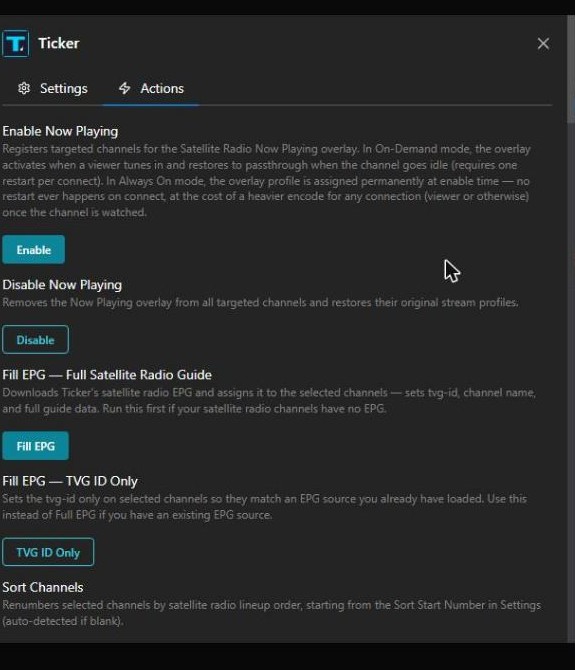
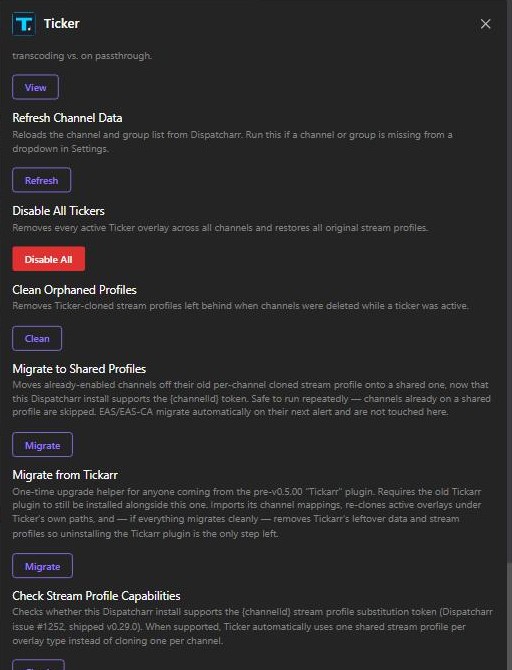
The Actions panel displays sections in the same order as the Settings panel: Now Playing → Channel Setup → EAS/JAS Weather Alerts → Custom Text → Sports Ticker → Manage.
 |
 |
Action Button Color Key
Each section has its own button color so you can identify which overlay type an action belongs to at a glance. Within each color, filled buttons activate or update and outline buttons remove, restore, or run a secondary utility.
| Color | Section |
|---|---|
| Cyan | Satellite Radio — Now Playing and Channel Setup |
| Orange | EAS / JAS Weather Alerts (USA — NWS) |
| Teal | Weather Canada Alerts (Environment Canada) |
| Blue | Custom Text |
| Green | Sports Ticker |
| Violet | Manage |
| Red | Global destructive actions only — Disable All Tickers and Restart Dispatcharr |
Satellite Radio Now Playing
| Action | Description |
|---|---|
| Enable Now Playing | Registers targeted channels for Now Playing. Clones profiles on-demand when viewers connect; restores to passthrough when idle. |
| Disable Now Playing | Restores original profiles and removes all clones for Now Playing channels. |
Satellite Radio Channel Setup
| Action | Description |
|---|---|
| Fill EPG — Full Satellite Radio Guide | Downloads Ticker’s satellite radio EPG and assigns it to the selected channels. |
| Fill EPG — TVG ID Only | Sets tvg-id only — use when you already have an EPG source loaded. |
| Sort Channels | Renumbers selected channels by satellite radio lineup order. |
| Assign Logos | Sets logos from Ticker’s built-in satellite radio library. |
| Fill EPG + Sort | Runs Full EPG fill and Sort together. |
| Fill EPG + Sort + Logos | Runs Full EPG fill, Sort, and Logos together. Recommended for first-time setup. |
EAS/JAS Weather Alerts (USA — NWS)
| Action | Description |
|---|---|
| Enable EAS — JAS Weather Alerts | Arms selected channels for NWS EAS. No profile is cloned until a real alert fires. |
| Test EAS Alert | Fires a fake NWS EAS overlay for the configured Test Alert Duration, then auto-restores. |
| Disable EAS Ticker | Restores original profiles and disarms all NWS EAS-enabled channels. |
| Migrate EAS to Dynamic Mode | One-time migration for users upgrading from an older version of Ticker that used always-on EAS profiles. |
| NWS Zone Lookup — Find USA Zone Codes | Enter a 2-letter US state code in Zone Lookup State in Settings, then click to get all NWS zone codes for that state. |
Weather Canada Alerts
| Action | Description |
|---|---|
| Enable Weather Canada Alerts | Arms selected channels for Weather Canada alerts. No profile is cloned until an active EC alert fires. |
| Test Weather Canada Alert | Fires a fake Weather Canada alert overlay for the configured Test Alert Duration, then auto-restores. |
| Disable Weather Canada Alerts | Restores original profiles and disarms all Weather Canada-enabled channels. |
| City Lookup | Enter a city name or 2-letter province code in City Lookup in Settings, then click to get matching city IDs. |
Custom Text
| Action | Description |
|---|---|
| Enable Custom Text | Registers channels. In On-Demand mode, clones profile only when text is set. In Always On mode, clones immediately. |
| Update Custom Text | Sets or changes the displayed text. In On-Demand mode, also clones the profile if no overlay is active, or restores passthrough if text is cleared. |
| Disable Custom Ticker | Restores original profiles and removes all clones for Custom Text channels. |
Sports Ticker
| Action | Description |
|---|---|
| Enable Sports Ticker | Registers channels. In Always On mode, clones immediately. In smart modes, clones when a live qualifying game is detected and restores when all games end. |
| Update Sports Ticker | Updates the league selection, trigger mode, display settings, or ticker style on already-enabled channels without restarting the stream. Ticker content reflects the new settings within ~30 seconds. |
| Test Sports Ticker | Fires fake score data on the selected channel for the configured Test Ticker Duration, then auto-restores. Use this to verify your display settings (position, font size, color mode, ticker style) without waiting for a live game. |
| Disable Sports Ticker | Restores original profiles and removes all clones for Sports Ticker channels. |
Manage
| Action | Description |
|---|---|
| View Active Tickers | Lists all channels that have a Ticker overlay registered, grouped by type. Shows which channels have active overlay profiles vs. passthrough. |
| Refresh Channel Data | Re-fetches the live satellite radio channel/station catalog and repairs already-enabled channels that have no ticker.com match (no now-playing data ever appears for them). Also reloads the channel/group list for dropdowns in Settings. |
| Save Settings | No-op action that exists purely to force Dispatcharr to persist the Settings tab. Dispatcharr only writes the Settings form to disk alongside an action run, not when a field is changed — if you’re not about to click another action after changing a setting, click this one so the change actually sticks. See Settings changes not saving. |
| Disable All Tickers | Disables every active Ticker overlay across all channels. |
| Clean Orphaned Profiles | Removes cloned stream profiles left behind when channels were deleted while a Ticker overlay was active. Also reaps shared profiles once no channel references them anymore. |
| Migrate to Shared Profiles | On Dispatcharr v0.29.0+, moves already-enabled channels off their old per-channel cloned profile onto a shared one. Safe to run repeatedly. See Upgrading an existing install to shared profiles. |
| Migrate from Tickarr | One-time upgrade helper for anyone coming from the pre-v0.5.00 “Tickarr” plugin. Requires Tickarr to still be installed alongside Ticker. See Upgrading from the old Tickarr plugin. |
| Check Stream Profile Capabilities | Reports whether this Dispatcharr install supports the {channelId} token (v0.29.0+) and therefore which profile mode Ticker is using — shared or per-channel. |
| Redis Diagnostics | Reports whether Redis is reachable and how many channels have active viewers detected. |
| Reload Poller | Restarts background polling threads without restarting Dispatcharr. Use if overlays stop updating but streams are still live. |
| Restart Dispatcharr | Restarts the Dispatcharr container. Required after every install or update. |
Troubleshooting
Overlay is not appearing
- Confirm you ran Restart Dispatcharr after installing or updating the plugin.
- Confirm the channel has a stream profile assigned in Dispatcharr (see Before You Start).
- If using On-Demand mode: confirm someone is actively watching the channel. The overlay only activates when a viewer is connected. Give it up to 15 seconds on first connect.
- If using Active Games Only or Favorite Teams Only for Sports: confirm there is a live qualifying game in progress. During off-hours, this is correct behavior — the channel will be on passthrough.
- Run Actions → View Active Tickers to confirm the channel is registered.
- Try Actions → Reload Poller, then switch away from and back to the channel in your player.
Overlay shows stale or wrong content
Run Actions → Reload Poller. If still stale after 30 seconds, disable and re-enable the channel. The disable/enable cycle re-clones the profile with current parameters and forces a fresh data fetch.
Overlay worked, then stopped appearing on its own
If the channel is on an auto-synced M3U playlist, check whether its channel group has a default Stream Profile configured on the M3U account side — see Auto-synced channels can silently revert Ticker’s overlay profile. Dispatcharr’s periodic M3U sync reasserts that default profile on every refresh, overwriting Ticker’s cloned profile with no error message. Clear the group’s Stream Profile override to fix it.
“No games scheduled” in the sports ticker
This is not an error. The ESPN API has no live or recently finished games for the leagues you selected right now. The ticker will show scores automatically when games start. Confirm your league toggles are set to leagues that are currently in season.
Channel missing from dropdown
Run Actions → Refresh Channel Data, then check that the channel is managed by Dispatcharr, belongs to a channel group, and has a stream profile assigned.
EAS alert is not firing
- Confirm your zone codes are correct and the alert is actually active for those zones. You can verify at
https://api.weather.gov/alerts/active?zone=OHZ001(replace with your code). - Confirm the alert’s severity meets or exceeds your Severity Filter setting.
- Confirm the alert’s status is
actual(nottestorexercise) — Ticker filters for real alerts only. - Run Test EAS Alert to verify your EAS setup is working independently of a real alert.
- Check Dispatcharr container logs for any Ticker EAS errors.
EAS channel not restoring after alert clears
If Dispatcharr was restarted while an EAS alert was active, the plugin may lose track of the original profile. Run Actions → Clean Orphaned Profiles, then manually restore the channel’s profile in Dispatcharr if needed.
Audio/video sync problems
Sports Ticker and EAS overlays require video re-encoding. If you experience A/V drift, disable and re-enable the affected channel — this re-clones the profile with the current FFmpeg parameters and regenerates audio PTS. If problems persist on sports channels, try toggling Single Color mode (lower encoder complexity).
Siren tone not playing
Confirm Siren Tone Interval is greater than 0. The tone only applies to profiles cloned after the setting is saved — if an EAS alert was already active when you changed the setting, it will not apply until the next alert cycle. Use Test EAS Alert after saving the new setting to verify.
Orphaned stream profiles after deleting channels
Run Actions → Clean Orphaned Profiles.
Redis errors or zero active channels
Run Actions → Redis Diagnostics. If Redis is unreachable, On-Demand and smart trigger modes will not detect viewers — Ticker falls back to polling all registered channels. Restart Dispatcharr to restart Redis if needed.
Plugin changes not taking effect after an update
Run Actions → Restart Dispatcharr. Plugin code is cached at startup — a restart is always required after any update.
Settings changes not saving
Dispatcharr only writes the Settings tab to disk when you run an Action — not when you change a field and close the dialog. A toggle or dropdown you changed and then walked away from will silently revert to its previous saved value. After changing anything in Settings, run Actions → Save Settings (or any other action) to confirm the change actually persisted.