ticker
Ticker

A Dispatcharr plugin that injects dynamic text overlays into IPTV channels via FFmpeg. Ticker clones the channel’s existing stream profile, injects overlay parameters, and restores the original profile on disable — the source profile is never modified.
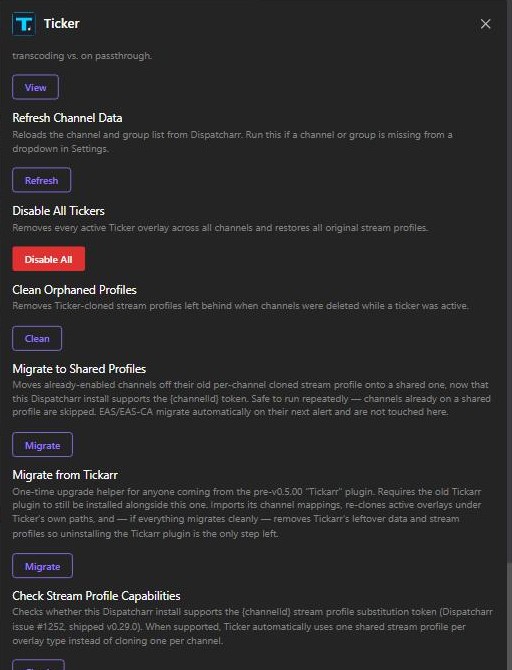
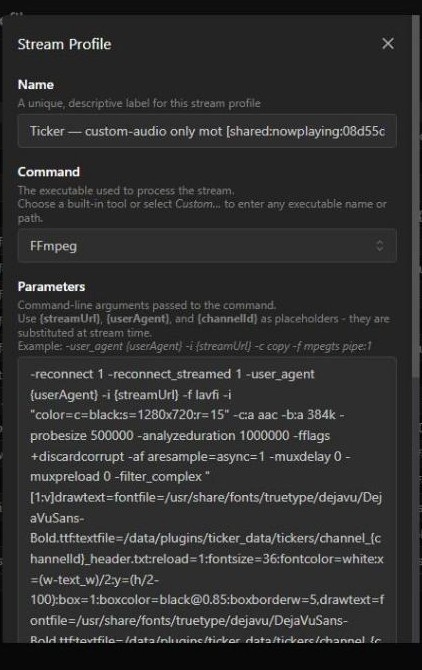
On Dispatcharr v0.29.0+, Ticker uses the new {channelId} stream profile token to share one stream profile across every channel using the same overlay type and base profile, instead of cloning one profile per channel. Older Dispatcharr versions automatically fall back to the previous one-clone-per-channel behavior — Ticker detects which mode it’s running in and there’s nothing to configure either way.
Screenshots
 |
 |
 |
 |
Features
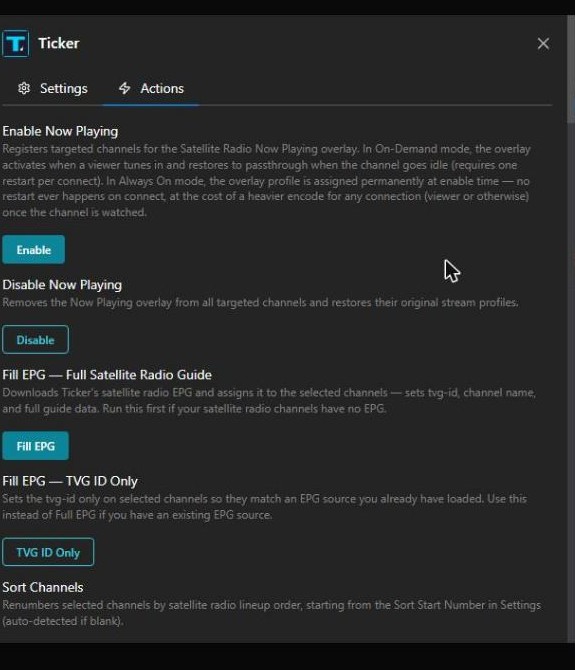
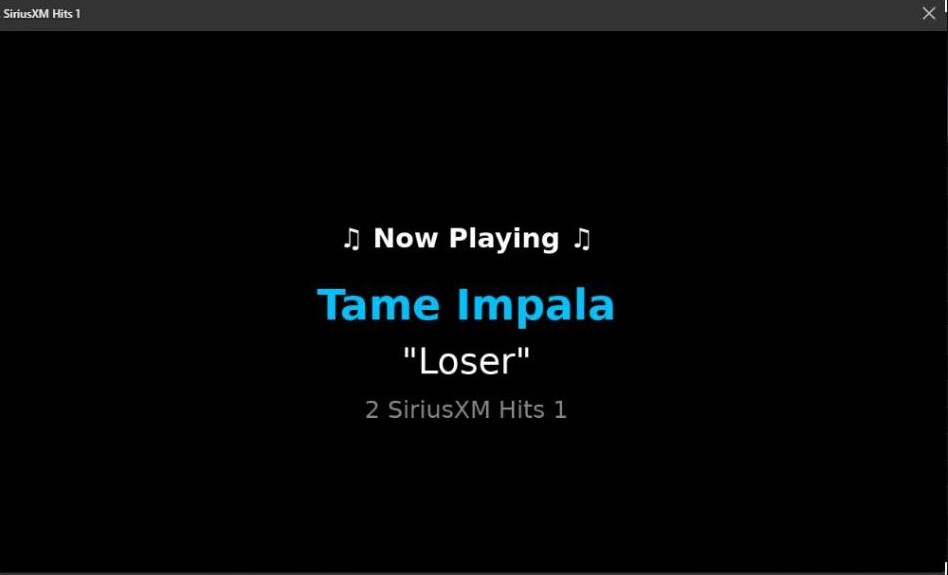
Satellite Radio Now Playing
- Auto-maps Dispatcharr channels to satellite radio stations
- Displays artist, song title, and channel name as a live-updating overlay
- Audio-only channels receive an injected 1280x720 black video background — the base profile must be genuinely audio-only (no
-c:v/-vcodecflag, not even-c:v copy) or the overlay will never render. See Your base profile must be genuinely audio-only in the User Guide. - On-Demand mode (default): overlay activates when a viewer tunes in, restores to passthrough when idle
- Always On mode: overlay profile assigned permanently at enable time — no restart on connect, recommended for players sensitive to mid-stream restarts (e.g. Plex). On Dispatcharr v0.29.0+, every channel sharing the same base profile uses one shared stream profile regardless of lineup size. On older Dispatcharr versions, Ticker falls back to one cloned stream profile per enabled channel — see Shared vs. per-channel stream profiles in the User Guide. No performance impact either way — FFmpeg only runs while a channel is actively connected, regardless of how many profiles exist.
Satellite Radio EPG (Fill EPG action in Satellite Radio Channel Setup)
- Sports channels: real game-by-game listings (matchups, races, events), refreshed every 4 hours
- Most other named channels (music, talk, news, comedy): real show lineup — actual program names and air times pulled from SiriusXM’s own published schedules, refreshed daily — instead of one generic all-day block
- Channels with no published schedule fall back to a single all-day block automatically, same as before this existed
EAS/JAS Weather Alerts — USA (NOAA/NWS)
- Monitors NOAA/NWS for active weather alerts in your configured zones
- Automatically activates a full-width broadcast-style alert bar when an alert fires
- Scrolling crawl with alert details, colored severity label, and optional attention tone
- When multiple alert types are active, the label shows the most severe event and the crawl lists all of them
- Profile switches back to normal passthrough the moment the alert clears
- Attention tone (853+960 Hz EAS dual tone) repeats at a configurable interval
- Co-arms with Now Playing, Custom Text, and Sports Ticker — EAS takes precedence when an alert fires and the previous ticker resumes when it clears
- Test EAS Alert action to verify your overlay without waiting for a real alert
JAS — jesmannstl Alert System. Dedicated to jesmannstl, a weather fanatic and beloved member of the Dispatcharr community. Every alert that fires is a reminder of him. Rest in peace.
Weather Canada Alerts (Environment Canada)
- Monitors Environment Canada for active alerts in your configured city IDs
- Same broadcast-style overlay as NWS — full-width alert bar, colored severity label, scrolling crawl
- NAAD attention signal (Canadian alerting tone) plays at the configured interval during active alerts
- Severity mapped to Canada’s color system: Yellow (Watch/Moderate), Orange (Warning/Severe), Red (Emergency/Extreme)
- Bilingual area names — alert location displayed in English or French based on your language setting
- Can run simultaneously with NWS EAS — independent channel targeting for each source
- Separate city lookup action: enter a city name or province code to find your city IDs
Custom Text
- User-defined static or scrolling text overlay on any channel
- Configurable position (top or bottom), display timing, and style
- On-Demand mode: overlay fires when text is set, disappears when text is cleared
Sports Ticker
- Live scores from the ESPN API across 26 leagues and NASCAR
- Scrolling or static ticker at the top or bottom of the screen — live games shown first
- Smart trigger modes: Always On, Active Games Only, or Favorite Teams Only
- Active Games Only: ticker fires automatically when a live game is in progress, clears when all games end
- Favorite Teams Only: ticker fires only when your specified teams are playing
- Static mode: centered fixed text — ideal when showing one or two teams via Favorite Teams
How On-Demand Mode Works
Every overlay type in Ticker supports an on-demand mode, which keeps your channels on normal passthrough until there is actually something to show. No re-encoding, no CPU overhead, no unnecessary profile clones — until the trigger condition is met.
Sports Ticker
You can set the sports ticker to only display when there is actually a live game happening. If you have MLB enabled, every time there is a live MLB game on, the ticker automatically appears on any channel you are actively watching. The moment all the games end, the ticker disappears and your channel goes back to normal.
If you only care about a specific team, you can set a Favorite Teams filter. Put in the Astros and the ticker will only ever appear when the Astros are playing — not during any other game, only Houston. The moment that game ends it goes away until the next time they take the field.
If you are using Favorite Teams and only following one or two teams, you can set the Ticker Style to Static — the score sits centered and fixed on screen rather than scrolling. Keep Scrolling if you have multiple leagues or teams enabled, since long content will be cut off in Static mode.
Satellite Radio Now Playing
Ticker does not do anything to a channel until someone actually starts watching it. The moment a viewer tunes in, the Now Playing overlay activates — showing the current artist, song title, and channel name. If nobody has been watching for about 30 seconds, it quietly switches back to normal passthrough until the next time someone tunes in.
This matters a lot if you have a large satellite radio lineup. Instead of re-encoding hundreds of channels around the clock whether anyone is watching or not, Ticker only runs the overlay on the channels that are actually being watched right now. FFmpeg only runs while a channel is actively connected either way — the trigger mode doesn’t change that.
Switching a channel’s stream profile always requires a brief restart to take effect. On-demand mode does this the moment a viewer connects, which most players handle fine — but some (Plex is a known example) are sensitive to a restart landing mid-connect. If you’re seeing playback issues on first tune-in with a specific player, switch that channel’s Trigger Mode to Always On: the overlay profile is assigned before anyone ever connects, so there’s nothing to restart.
Custom Text
Nothing happens until you give it something to display. You enable it on a channel and the channel stays completely normal until you go to Update Custom Text, type your message, and run the action — at that point the overlay appears. When you want it gone, clear the text field and run Update Custom Text again. Ticker removes the overlay and puts the channel back to passthrough instantly.
EAS Weather Alerts
Your channel runs 100% normally at all times. Ticker sits quietly in the background watching the NWS API for your configured zone codes — no overlay, no extra encoding, nothing. The moment an actual weather alert goes active for your zone, Ticker automatically switches the channel to the EAS overlay: scrolling alert bar, severity label, and attention tone if configured. The second that alert clears on the NWS side, your channel goes silently back to normal. Completely automatic, start to finish.
Lower-severity alerts don’t have to scroll nonstop for their entire duration — a per-severity Display Interval lets a Moderate alert (e.g. a Heat Advisory) flash on screen every so often instead of staying up continuously, while Severe/Extreme alerts can stay constant. See Shared EAS Settings in the User Guide.
Upgrading from Tickarr
Ticker was renamed from Tickarr in v0.5.00 — a full rebrand, not a fork, but Dispatcharr treats it as a brand-new plugin (different plugin key and data directory), so an in-place update does not carry your configuration over automatically. If you still have the old Tickarr plugin installed alongside Ticker, run Actions → Migrate from Tickarr once: it imports Tickarr’s channel configuration, moves active overlays onto new Ticker-managed stream profiles, and — if nothing fails — cleans up Tickarr’s leftover data and profiles so uninstalling the Tickarr plugin is the only step left. See Upgrading from the old Tickarr plugin in the User Guide for details.
Requirements
- Dispatcharr v0.27.1 or later. v0.29.0 or later is recommended — Ticker automatically uses a single shared stream profile per overlay type instead of cloning one per channel (see Screenshots above). Upgrading an existing install from an older Dispatcharr version to v0.29.0+ picks this up automatically the next time you enable a ticker; run Actions → Migrate to Shared Profiles to move already-enabled channels over immediately without waiting.
- Redis (used by Dispatcharr — standard in all installs)
- FFmpeg in the Dispatcharr container (standard in all installs)
- Channels must have an FFmpeg-based stream profile assigned — Proxy and Redirect profiles bypass FFmpeg and cannot be used with any Ticker overlay. See Before You Start in the User Guide if affected channels are being skipped.
Installation
- Open Dispatcharr → Plugins → Find Plugins
- Search for Ticker and install
-
After installation, go to Ticker → Actions → Restart Dispatcharr
A restart is required after every install or update. Django caches plugin code at startup — without a restart, new code will not load.
- Configure your settings on the Ticker plugin page
- Run the appropriate enable action for the overlay type you want
Quick Start
See the User Guide for full setup instructions, settings reference, and troubleshooting.
Actions Tab — Button Color Key
Each section of the Actions tab has its own button color. Filled buttons activate or update; outline buttons remove, restore, or run a secondary utility.
| Color | Section |
|---|---|
| Cyan | Satellite Radio — Now Playing and Channel Setup |
| Orange | EAS / JAS Weather Alerts (USA — NWS) |
| Teal | Weather Canada Alerts (Environment Canada) |
| Blue | Custom Text |
| Green | Sports Ticker |
| Violet | Manage |
| Red | Global destructive — Disable All Tickers and Restart Dispatcharr only |
ESPN Team Reference
See TEAMS.md for ESPN team abbreviations used by the Sports Ticker.